


The ability to deftly integrate a hyperlink into the content of a LinkedIn message can turn a simple exchange into a concrete opportunity, offering your LinkedIn contact a window to your achievements, insights or relevant events. It’s an elegant way to extend the conversation, adding relevant content beyond the confines of the initial LinkedIn message, and inviting your contact to explore the topic further.
Not only does this approach enrich the content of your LinkedIn message, it also positions you as a valuable resource, someone who adds value to his or her network. Whether it’s a post, an insightful blog article on your site, a relevant case study or the announcement of a professional event.
LinkedIn doesn’t necessarily like the massive use of hyperlinks on a profile, as this professional social network wants to keep its users on its platform rather than send them to another web page when they click. That’s why I don’t recommend this method for automation campaigns. To keep your LinkedIn account healthy, remember to follow our usage rules.
The benefits of integrating hyperlinks on LinkedIn
Adding hyperlinks to the content of LinkedIn messages is a practice that can considerably enrich your exchanges and optimize your professional communication on LinkedIn. Let’s take a closer look at the main advantages of this approach.
Integrating a hyperlink into a LinkedIn message is a good marketing strategy that can broaden the spectrum of information you share, without making the message itself too dense or off-putting.
Adding a link to your message is particularly effective in keeping your recipient’s attention on LinkedIn by offering them the chance to explore further details or content on another page, depending on their interest. These additions make your message richer and more engaging on social networks.
Hyperlinks are a powerful tool for showcasing your know-how and expertise in a given field. By directing your LinkedIn recipients with a link to web page content such as articles you’ve written, projects you’ve contributed to or even customer testimonials, you boost your professional credibility on LinkedIn. This approach demonstrates your active involvement in your field and underlines the relevance of your network, which can prove decisive when it comes to collaboration, recruitment or partnership development opportunities.
The judicious use of hyperlinks in the content of your LinkedIn messages can also act as a lever to encourage your LinkedIn recipients to take action. Whether you’re inviting them to a page to register for an event, check out a special company offer or discover an innovative service, the link creates a direct path to the desired action. This LinkedIn method simplifies the process for the recipient, increasing the chances of a positive response or interaction on LinkedIn. By making action easy and accessible, you maximize the impact of your LinkedIn communication and encourage engagement with your network.
Tip: If you have Sales Navigator, you can use Smart Links to place hyperlinks and have real-time access to who opened the page, when and how long they stayed on your document. This technique is particularly effective for white papers.
In short, integrating hyperlinks into the content of your LinkedIn messages is a marketing strategy that, if used properly, can turn your interactions into concrete opportunities. Not only does it enrich the content of your LinkedIn messages, it also positions you as a key player in your field, while facilitating targeted action on the part of your LinkedIn recipients.
How to add hyperlinks to a LinkedIn message
Inserting hyperlinks into the content of your LinkedIn messages can be done in a number of different ways, each with its own specificities. Here’s a detailed guide to the most common methods for effectively integrating links into your LinkedIn communication content on this professional platform.
Direct link insertion
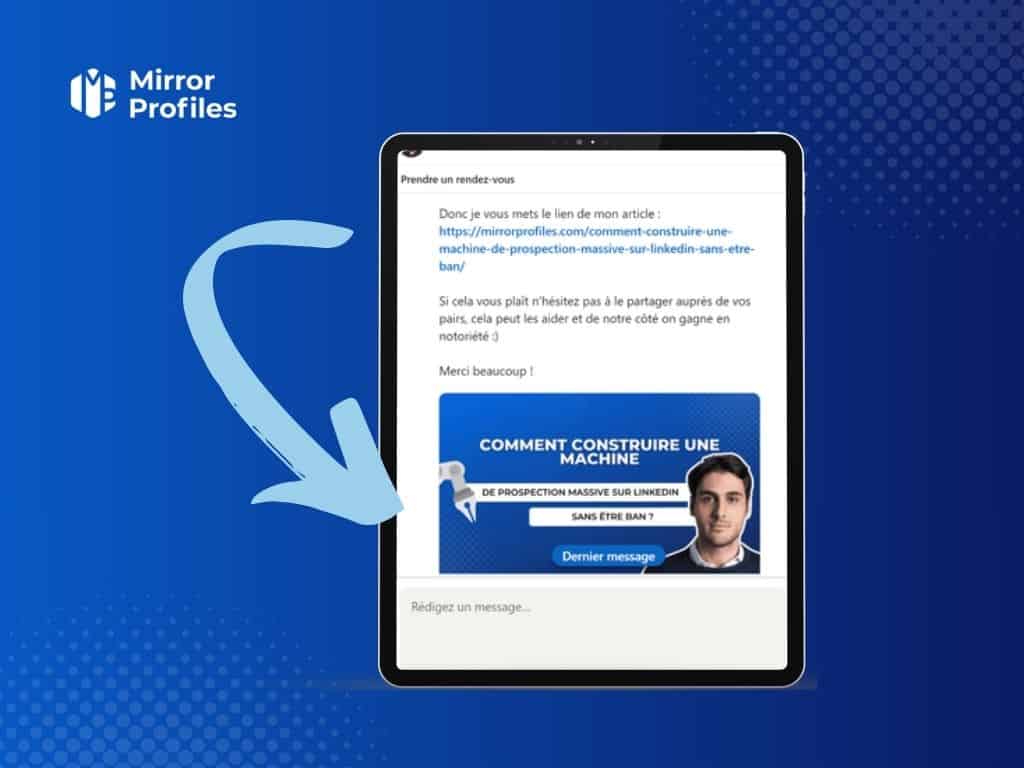
The easiest way to add a hyperlink to the content of your LinkedIn message is to copy and paste the URL of the link directly into the body of the LinkedIn message. Once the link is inserted into the content, LinkedIn automatically recognizes it as a hyperlink and transforms it into clickable text. This transformation facilitates access to the shared resource for the recipient on LinkedIn, who can access it with a simple click. It’s essential to check that the URL of the link is correct and functional before sending it, to avoid any redirection errors.
Using the ‘Attach a link’ function
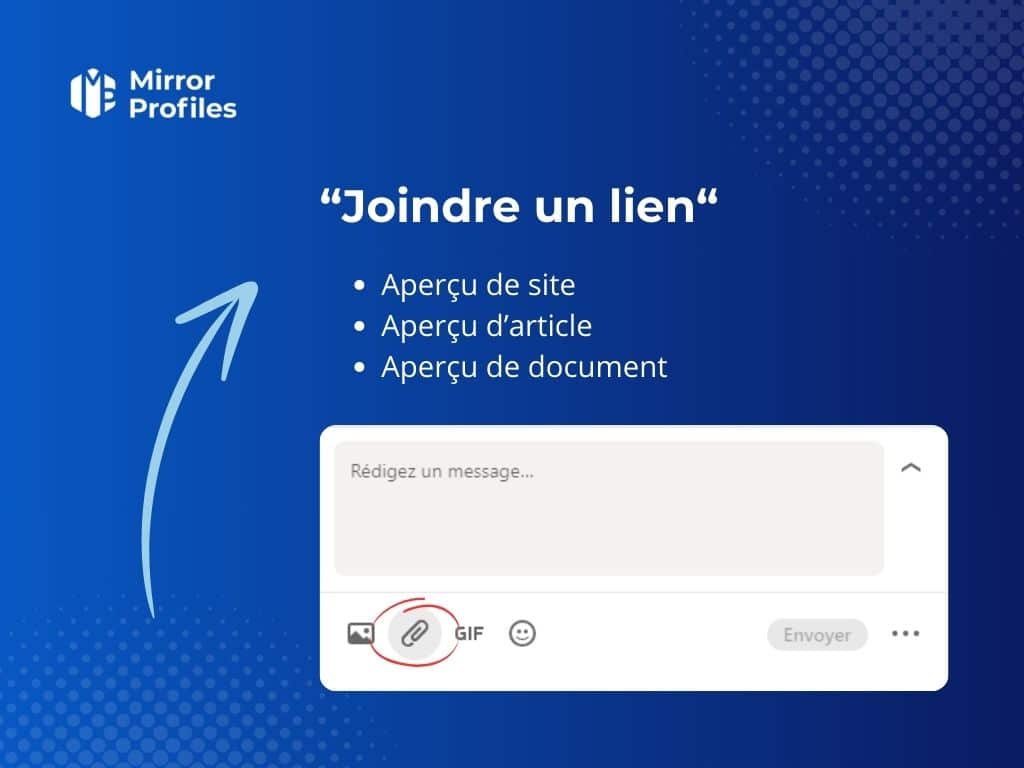
For a more refined and visual integration of your link into your content, LinkedIn offers the ‘Attach a link’ feature. This LinkedIn option, accessible via the paperclip icon at the bottom of your message input field, opens a window where you can enter the URL of the desired link. Once the link URL has been added, LinkedIn generates a preview of the linked content, offering the recipient a preview of the site, article or document you wish to share. This method makes the hyperlink more engaging and may encourage more interaction on LinkedIn. However, if you want to track the click-through rate, this method won’t let you do so, as it triggers the download of your attachment.
Customize anchor text
To further personalize the content of your LinkedIn message, it may be tempting to use anchor text with a hyperlink instead of pasting the URL of the link directly into the message. Unfortunately, LinkedIn doesn’t have this feature.
These methods of adding hyperlinks each offer specific advantages and can be used according to the context of your LinkedIn message and the desired effect. Whether you opt for a direct insertion or use the ‘Attach a link’ function, the important thing is to make the content of your LinkedIn messages as informative and engaging as possible.
Please note: if you use MirrorProfiles accounts, our usage rules do not allow you to send a link without your contact’s consent. LinkedIn treats this as spam, and that applies to any account: our dedicated accounts as well as your own personal LinkedIn account.
Best practices for integrating hyperlinks
The integration of hyperlinks in the content of your LinkedIn messages must be done with discernment to maximize their effectiveness and guarantee optimal professional communication. Here are a few best practices to adopt when integrating a link into your content:
Link selectivity
Relevance is key when you decide to add hyperlinks to your LinkedIn messages. Identify and select links that add value for your recipient and are relevant to their interests or needs. This selective approach avoids overloading your LinkedIn message with unnecessary information, and ensures that shared links hold the recipient’s attention and encourage engagement.
Providing context
An isolated hyperlink, without any explanation, can seem obscure and dissuade the recipient from clicking. For each link you include in your LinkedIn message, identify and provide a succinct context that sheds light on why it’s there and what it can do for the recipient. A short introductory sentence or explanation of the link’s importance can greatly increase the chances of it being explored.
Checking links
Before finalizing and sending your LinkedIn message, take the time to test each hyperlink to make sure it works properly and leads to the right destination. A broken or incorrect link can not only frustrate the recipient, but also damage your credibility. Pre-checking helps avoid these inconveniences and ensures a smooth user experience.
Using link shorteners
Long, complex URLs can make your LinkedIn message cluttered and less readable. To maintain a clean aesthetic and improve the user experience, consider using link-shortening services such as Bitly or TinyURL. These tools can transform long URLs into shorter, more manageable versions, making your message clearer and more visually appealing.
Not used in automation
To avoid being treated as a spammer by LinkedIn, don’t use links directly in your prospecting or recruitment copywriting. Keep them for surgical, one-to-one prospecting, or for when your prospect replies to you. One good practice is to save your useful links as message templates in your automation tool or your CRM, so that they are ready to paste as soon as a conversation starts.
By following these best practices, you’ll optimize the integration of hyperlinks into your LinkedIn messages, making your communications not only more professional, but also more effective and engaging.
The judicious integration of hyperlinks in your LinkedIn messages transcends the simple action of sharing a link. It’s a thoughtful practice that, when applied with discernment, can turn your interactions into direct lines to rewarding opportunities. Whether you’re looking to expand your network, share your expertise or encourage a specific action, hyperlinks are proving to be powerful vectors of engagement and communication.
So, by adopting the good practices outlined above, you’ll not only be demonstrating professionalism; you’ll also be opening the door to more meaningful exchanges, which could turn into fruitful collaborations. The art of using hyperlinks on LinkedIn is therefore another string to your bow in maximizing the profitability of your LinkedIn automation campaigns.