



Many seasoned professionals use Sales Navigator to reinforce their prospecting strategies on LinkedIn. Among the challenges they face, manually creating a list of targeted companies can quickly become tedious and time-consuming. Fortunately, Sales Navigator offers an effective way to skip this laborious task. By importing your company database directly into the tool, you save precious time while ensuring a targeted, strategic approach to your prospecting activities.
In this article, we’ll show you how to import companies into Sales Navigator step by step, so that you can concentrate on what’s really important: engaging with your potential prospects. With large, high-quality databases, all you then need is several MirrorProfiles accounts to contact all your prospects.
Whether you’re looking to expand your customer portfolio, generate qualified leads or establish strategic partnerships, find out how to make the most of Sales Navigator’s import function to accelerate your business growth.
Have a Sales Navigator Advanced account
To import a company list into Sales Navigator, you need a Sales Navigator Advanced subscription. This feature, which is particularly useful for building large target lists, is not available in the least expensive package.
Here are the different packages. LinkedIn Sales Navigator offers three distinct plans, whose current prices are listed on LinkedIn’s Sales Navigator pricing page:
- Sales Navigator Professional (Core)
- Sales Navigator Team (Advanced)
- Sales Navigator Enterprise (Advanced Plus)
The Professional plan is LinkedIn’s most economical option, perfect for those starting out in marketing or sales. With it, you get all the essential features of Sales Navigator:
- Advanced filters for prospecting and account research
- Notifications on prospect and account activity
- Ability to build a customized list of prospects and accounts
- Saved searches
The Sales Navigator Team (Advanced) plan is slightly more expensive than the Professional plan due to its additional benefits. With it, you get:
- Smart Links for sharing content and tracking prospect interaction
- Company list import. You’ll see that it’s this feature that will make you choose this version over the first. On the first, you have to add companies 25 by 25 (i.e. by hand) to a company list.
- TeamLink to access your team’s 2nd and 3rd level connections
Sales Navigator Enterprise has no fixed price. A web page will invite you to schedule a demo, and the final cost will depend on your requirements; an account manager will be happy to discuss this with you. With this plan, you gain access to three additional benefits:
- TeamLink Extend: access to the 2nd and 3rd level connections of all your colleagues
- Live contact updates: be informed when a prospect in your CRM changes function
- Advanced CRM integration: integrate all LinkedIn information into your CRM.
The last thing you need to do is choose your subscription from among all those offered by LinkedIn.
Now that you have a Team account and are ready to import, the first step is to prepare your list of companies.
Create your company list
Identifying target companies is a crucial step in any prospecting strategy. It allows you to focus your efforts on the companies that best match your offer and your objectives.
How do you define your selection criteria?
Before starting your search, it’s essential to clearly define your selection criteria. Ask yourself questions such as:
- What size of company are you targeting?
- In which business sectors?
- What is your preferred geographical location?
These criteria will help you refine your search and focus on the companies most relevant to your business.
Techniques for identifying target companies
To identify target companies, employ strategies such as targeting by specific industries, sizes or geographical locations. You can also explore companies using certain technologies, with tools such as BuiltWith or DemandBase.
Once you’ve identified your target companies, the next step is to organize and format your list in a structured way.
Essential fields to include for each company
It’s crucial to have a well-organized list to facilitate the prospecting process. Here are the essential fields to include:
- Company name: This is the first identifier of your target. Make sure the name is spelled correctly to avoid confusion.
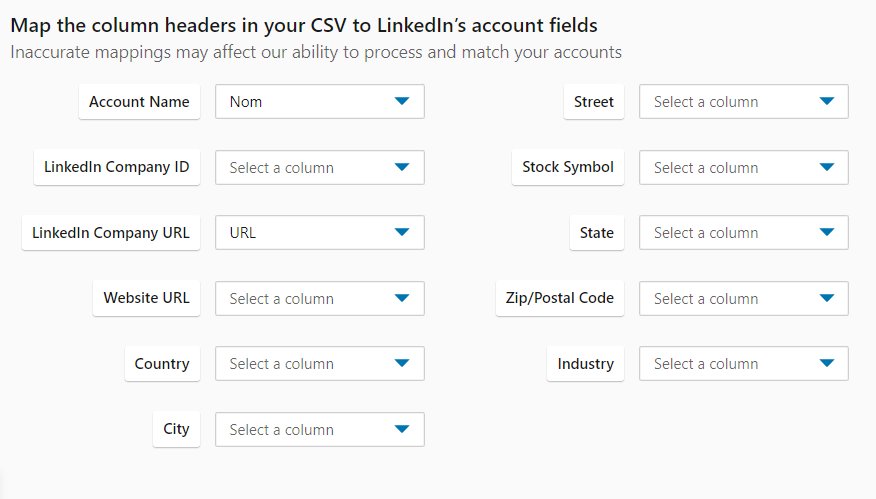
- LinkedIn URL: The company’s LinkedIn URL is a direct link to its page on the platform. This facilitates access to detailed information and networking with the company’s decision-makers.
It’s essential to note that, while the company name may suffice for some searches, including the LinkedIn URL is crucial to ensure accuracy. For example, when using tools like Sales Navigator to build lists, errors can occur if several companies have the same name. Adding the LinkedIn URL eliminates this risk and ensures that you target the exact company you had in mind. To export these lists from Sales Navigator, I recommend Captain Data.
To refine your list of accounts, you can add data to your company list:
 With a well-prepared list of companies in hand, you’re now ready for the final step: importing them into Sales Navigator.
Import a company list CSV into Sales Navigator
Here’s how to access the import function. You’ll see, it’s very simple! You can create company lists of up to 1,000 lines by importing them in CSV format. Be sure to respect the naming criteria for an efficient import.
Volume limits with Sales Navigator
Sales Navigator, like any LinkedIn feature, is meant for a reasonable level of activity on each account. LinkedIn limits each account: what matters is not the tool you use, but the volume of actions run from a single account. Remember to check the LinkedIn daily limits before you start. That’s where MirrorProfiles comes in: a service that rents dedicated LinkedIn accounts, manually warmed up over 4 months with more than 500 real connections. These accounts let you scale your prospecting without involving your personal account.
One of the key benefits of this solution is the protection of your personal account. Renting a MirrorProfiles account does not change what a single account can do: each account keeps its own limits. But with several accounts, your volume becomes proportional to the number of accounts. And if an account ever needs to be replaced, MirrorProfiles replaces it in under 48 hours, so your campaigns keep running. As for Sales Navigator itself, one subscription, on a single account, is enough to build the lists your other accounts then work.
What’s more, using several dedicated accounts considerably increases your reach on the platform, multiplying your chances of creating relevant connections. You can also adopt a “verticalization” approach with accounts specialized by sector or niche. This refined strategy enhances the effectiveness of your prospecting. The most comprehensive LinkedIn strategy today combines Sales Navigator for targeting and MirrorProfiles accounts for volume.
In short, Sales Navigator Advanced is an essential asset for improving your prospecting on LinkedIn. Here are the key points to remember:
- Make sure you have a Sales Navigator Advanced account to benefit from all its powerful features.
- Take the time to carefully select your targets and structure your list of companies for the most effective results.
- Use Sales Navigator’s easy list import to start targeted prospecting. But keep each account within its own limits.
To scale without involving your personal account, consider MirrorProfiles: dedicated accounts, ready for automation, that let you multiply your weekly prospecting volume on LinkedIn. If you have any questions, don’t hesitate to contact us.