


Introduction
Sourcing is the first key step in the talent acquisition process. In today’s environment, where job boards are losing their luster and unemployment is low, talent no longer lingers to explore job offers. Hence the crucial importance of actively reaching out to them. This article aims to equip you with tips and strategies for fine-tuning your candidate sourcing on LinkedIn and your recruitment campaigns. Emphasizing that data is the central pillar of effective sourcing, we’ll also explore how MirrorProfiles can be an ally in your talent sourcing and acquisition process.
The essential strategy for optimizing candidate sourcing on LinkedIn: Recruiter Lite
For quality candidate sourcing, data is essential, and in large quantities. LinkedIn has had a monopoly for some time, and mastering it is imperative. In addition to the precise interventions your recruiters can make to enrich your sourcing list, 90% of it will be built up using LinkedIn Recruiter Lite.
As for the remaining 10%, recruiters can explore job boards to enrich their prospecting file, navigating strategically and cautiously through this mine of data that is available CVs. They can prove useful in the search for potential candidates, by thoroughly exploring and analyzing profiles, skills and career paths.
LinkedIn Recruiter Lite, a premium version of LinkedIn, is one of several types of subscription and is the most suitable for recruitment thanks to its varied features, including:
- Advanced filters
- Projects: to select individual candidates for your position
- “Search by ideal candidate”: useful when filter ideas are lacking, although this feature is not always optimal.
We will concentrate on advanced filters, using the following method:
- For a new position, review the LinkedIn profiles of people in similar positions with your competitors. If you want to reinforce an existing team, use your colleagues’ LinkedIn URLs.
- Analyze the profiles! The aim is to identify hard skills by looking for commonalities between different LinkedIn profiles. This analysis should provide you with your main filters, such as:
- Current job title
- Location
- Sectors
- Years of experience
These elements will form the basis of your Recruiter Lite search.
- Continue with precision work using the following filters:
-
Skills: use with caution, as some profiles may not be up to date.
-
Year of graduation: useful for excluding profiles that are being retrained or are too junior.
-
Company size: use this to fine-tune your copywriting according to candidates’ motivations.
-
Keywords: powerful if used correctly, it allows you to scan the entire profile with a keyword.
Additional tip: the Boolean operators “OR” / “AND” / “NOT” can be used in the “Keywords” filter to combine different keywords. For example: (“franchise” OR “network”) AND “luxury” NOT “restaurant”. LinkedIn will then highlight profiles that include either “franchise” and “luxury”, or “network” and “luxury”, while excluding those containing the keyword “restaurant”.
A small example of a good LinkedIn Recruiter Lite search. Here, the client is looking to recruit a salesperson in Paris, specialized and experienced in SaaS software, with the keywords “SAAS” AND “sales”.
But what’s the difference between the different Recruiter subscriptions?
LinkedIn Recruiter Lite: the economical option
- Target: VSEs, SMEs and independent recruiters.
- Features: over 20 search filters, access to connections up to the 3rd level.
- Limitations: 30 InMails per month, no project collaboration.
- Usage strategy: build a qualified, targeted network, add relevant candidates in advance, and make judicious use of InMails.
LinkedIn Recruiter: investment and depth
- Versions: Recruiter Professional Services (firms) and Recruiter Corporate (companies).
- Features: up to 150 InMails, 40 search filters, network-wide access (Corporate version), and collaboration capabilities.
- Cost: roughly ten times the price of the Lite version (see LinkedIn’s pricing page for current rates).
- Benefits: particularly beneficial for profiles in short supply and for recruiters at large companies, law firms and IT services companies.
Benchmark and usage strategy
- Networking and prospecting: the Lite version requires a solid networking strategy and prior prospecting, while the Recruiter versions offer far greater search depth and reach.
- Candidate management: Recruiter versions enable more detailed, collaborative candidate management, but require rigorous organization to process a high volume of applications and ensure a positive ROI.
The choice between LinkedIn Recruiter Lite and Recruiter should be guided by your specific recruitment needs, your budget, and your ability to manage and optimize the use of these tools. A well-defined recruitment strategy and the adoption of complementary technologies can also play a crucial role in improving your recruitment efficiency and results.
Tip:
For specific positions, LinkedIn Sales Navigator may be more suitable than Recruiter Lite. With Sales Navigator, you can quickly build up a list of companies based on specific criteria such as company headcount growth or headcount by division (e.g. Marketing, HR, etc.). This is crucial information for recruiters. For example, recruiting a salesperson can be easier if the company is going through a difficult period and is implementing restructuring plans 😉 To master Sales Navigator’s filters like a pro, go here: How to get the most out of Sales Navigator.
Having explored pre-selection via LinkedIn Recruiter Lite’s filters, let’s move on to the next phase, namely “screening”, or evaluation before making contact. This will help you prioritize your candidate prospecting and, above all, personalize your approach messages.
How do you identify the most suitable candidates before approaching them?
Now that we have a well-structured search via LinkedIn Recruiter Lite, we’re obviously not going to suggest that you copy and paste everything manually.
We’re going to “scrape” these profiles, i.e. extract them in bulk and integrate them into a Google Sheet. We’ll even go one step further and enrich these profiles with all the information available on their LinkedIn account, making it easier to prime the pool of candidates and, above all, to screen them before making contact. We’ll explain everything later.
For collection and enrichment, several tools are available, including PhantomBuster and Captain Data, to name but a few.
For our part, most of the teams we work with prefer Captain Data for its API stability and, above all, for its ability to chain collection steps. A workflow that allows them not only to collect but also to enrich their Recruiter Lite search.
- Use this Captain: “Search LinkedIn Recruiter Lite”.
- Add this step to the same workflow: “Visit LinkedIn Profile”.
- Then use the “Aggregate” function.
We’ve set up an n8n workflow and a Slack command to avoid human gymnastics, but concretely, you’ll get this end result: a Product Marketing profile database.
Note that LinkedIn limits each account, and this should not be overlooked in this workflow: a profile can only visit a limited number of other profiles per day, between 30 and 50 for a free LinkedIn account and between 80 and 100 for a paid one.
To protect your accounts, we divide the first stage into batches of 50 LinkedIn profiles, each batch being handled by a single LinkedIn account. Keep this collection step separate from the accounts you’ll use to contact candidates. For that contact stage, MirrorProfiles provides dedicated LinkedIn accounts, manually warmed up over 4 months and ready for automation, so your recruiters can multiply their weekly outreach volume without prospecting from their personal profiles.
As you can see, we obtain a great deal of information from the profile visit that will enable us to:
-
Personalize your copywriting, approach messages and follow-ups
-
Rate candidates before making contact
-
Build up a pool of candidates. For example, the average salesperson spends 2 years with a company before seeing if the grass is greener elsewhere. So, with this statistic, you know that as soon as a “Sales” in your pool reaches 2 years of seniority in the company, a little message is in order 😉
Once your file has been compiled, import it into your pre-ATS so that you can carry out the screening.
An ATS (Applicant Tracking System) is to the HR function what a CRM is to the sales team. It is used to centralize all information and manage your recruitment actions based on data. Setting up an ATS is essential to simplify your recruiters’ reporting and avoid information being lost or withheld.
For our part, we’ve developed a pre-ATS using various calculation rules and small scripts, allowing very pragmatic use before integration into a complete ATS. In my opinion, it’s similar to a CRM: you don’t want to “pollute” it with candidates rated 1 or 2 stars, or those who haven’t responded to a request.
To manage your outbound prospecting activities, we’ve designed a customized Airtable for our customers.
For each position you’re looking to fill, you’ll need to create a table with all the information you’ve collected previously, as in my database example above. You can import them as CSV files into your Airtable, then use a “View” (similar to a filter in Google Sheets or Excel) to display those that don’t yet have a star, so you can rate them. We’ve developed automatic screening scripts, but it would take too long to explain all that, so let’s keep it simple for now.
Next, you will add key columns that will allow you to manage and transform a simple centralization into a real pre-ATS:
- Tag
- Status
- Score
The “Tag” and “Status” columns will be updated automatically by your automation tools. For example, with La Growth Machine, you can use a webhook at each stage, but also at the end of your sequence. This will update your “Status” column with 3 pieces of information:
- Contacted: the candidate has received a connection request or a message.
- Accepted / Open: the candidate is part of your LinkedIn network or has opened your email.
- Answered: you have… well, you’ve understood the logic.
For the “Tag” column, use the tagging feature of your automation tool or your CRM to label the people who reply to your messages. Tags are customizable. Here is an example of what we use:
- “Interested”
- “Not interested”
- “Not interested at the moment”
- “Interview to be scheduled”
- “Appointment made”
- “Shortlisted”
- “Recruited 🎉”
Now all you have to do is trigger your webhook to update your Airtable. If you run into any problems with webhooks, don’t hesitate to contact us.
In just a few clicks, you’ll have up-to-date data. It’s crucial to keep your candidate pool up to date so you can start thinking about the next step: “candidate nurturing”. A person tagged “Not interested at the moment” on September 28 in your ATS can be contacted again by your recruiters 3 months later with just a few clicks.
The great thing about Airtable is that it’s 100% customizable, so you can really create the workflow that best suits your needs. For example, we had a design challenge: we developed a simple Airtable extension to transform media URLs into real photos in Airtable. It’s more pleasant. ChatGPT is your ally for developing this type of script.
Before:

After:
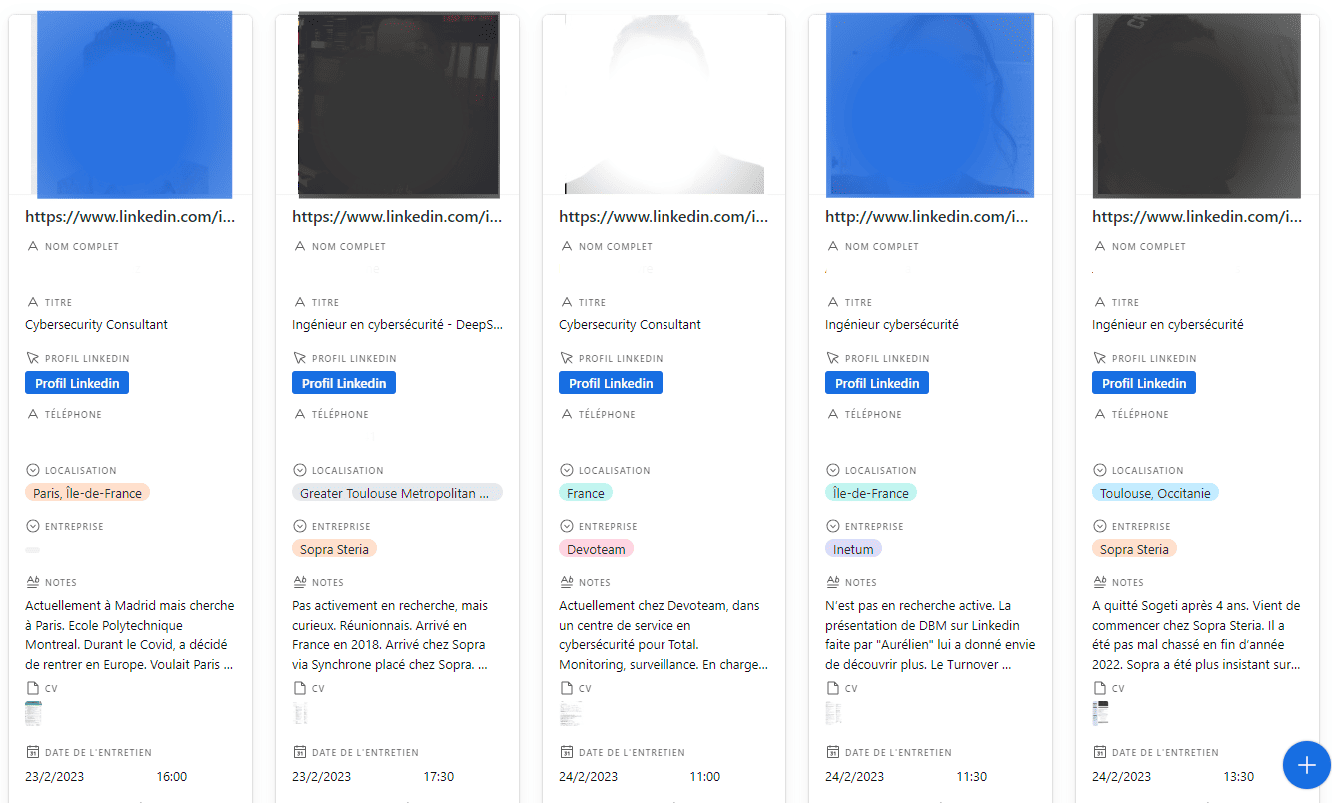
This is just one of the many extensions we have developed to meet our customers’ needs. But I’m sure you’ll discover others to suit your own needs.
Once you’ve explored how to create a file of candidates and organize them in your ATS, it’s time to move on to the long-awaited step: making contact!
Make approach messages your ultimate filter
Assigning stars is a good practice, as it allows you to tailor your approach to each profile. But how can you avoid being overwhelmed by dozens of interviews to manage? The trick to effective copywriting is to use message content to “filter” the candidates contacted:
- Keeping the “curious” away
- Keeping out higher earners
- Addressing sensitive points directly to avoid wasting time later on
Message content is at the heart of the process. In a candidate prospecting campaign, your macro statistics should look like this:
- Acceptance rate: over 40%.
- LinkedIn response rate: over 45%.
- Open rate: over 60%.
- Email response rate: over 20%.
- Phone response rate: over 70%.
If your statistics are lower than these, it means that your messages aren’t powerful enough, or that your initial database wasn’t adequate. The acceptance rate is a specific KPI to monitor, as it depends on the optimization of your LinkedIn profile and your candidate’s activity (or lack of it) on LinkedIn. Here is a list of golden rules that your messages should respect:
-
Keep each message under 500 characters.
-
Focus on the person, avoid “I” or “we”.
-
Provide a brief description of the company without simply copying and pasting your website, which is often too marketing-oriented.
-
Talk about salary! This has a double advantage: either it attracts, or the person earns more and there’s no need to continue. Yes, it’s a rather blunt approach, but here we’re aiming for efficiency.
-
Be human, explain why you’re recruiting and your weaknesses. What can the candidate bring to the table? They need to feel useful and valued. Remember, we come to them, not the other way around.
-
No job description URL or website: keep your candidate in the conversation.
-
Always ask for referrals if the person isn’t interested.
-
Don’t overuse merge tags: normally, if your database is precise enough, there’s no need for them. Personalization involves hand-written text, not custom variables, which are often misused and easy to spot.
-
Be careful with masculine/feminine agreements.
Conclusion
You now hold the keys to effective candidate prospecting. Sourcing shouldn’t stop at a few lines in your ATS, but rather at the moment a candidate responds to your prospecting campaigns. Whether automated or manual, copywriting can save your recruiters precious time. Remember, the more time your recruiters have, the better they’ll be able to conduct quality initial interviews and, ultimately, recruit the right profile for the position you’re offering. In this article, I’ve chosen not to talk about automation, because this technique also works very well if your recruiters prefer to send personalized one-to-one messages. If you’re interested in automation, take a look at this article: 5 automation tools to pair with MirrorProfiles.