


Sales Navigator is something we hear a lot about, but few people know how to use it properly. Yet good prospecting databases are the lifeblood of successful outbound campaigns. Here is a complete tutorial on how Sales Navigator works and how to maximize your sales with this essential LinkedIn tool.
Identify the right leads, reach key decision-makers and build strong relationships. Our detailed tutorial reveals the ins and outs of Sales Navigator, from its advanced search and filtering features to the way it pairs with MirrorProfiles: dedicated LinkedIn accounts for prospecting, rented rather than bought.
LinkedIn classic or Sales Navigator?
The free version of LinkedIn offers basic search functions for finding people, companies and jobs. The paid version, LinkedIn Sales Navigator, is designed specifically for sales and marketing professionals.
Sales Navigator revolves around 5 levers:
- Searching for leads (or prospects) using advanced search filters.
- Searching for accounts (companies) using dedicated company filters.
- Creating lead lists and account (company) lists. You will use company lists much more than lead lists.
- Tracking prospect and company activity such as posts, job changes, fundraising, etc.
- Communicating directly with your leads through InMails.
Prospecting on LinkedIn makes a real difference for sales and recruitment professionals, creating a more direct connection with corporate decision-makers. Rather than following traditional methods, it focuses on a thorough understanding of prospects’ specific needs. By fostering genuine connections in LinkedIn’s professional environment, this approach draws on data constantly updated by members, offering real opportunities for business development and recruitment. What’s more, by having your prospects in your LinkedIn network, or in that of one of your MirrorProfiles accounts, you will be able to:
- Get back in touch with them whenever you like, ideal for lead nurturing loops.
- Run LinkedIn post strategies. Your 1st-degree network sees your posts first in their LinkedIn feed. It is a good way to communicate indirectly and build awareness among your prospects.
The different Sales Navigator offers
Becoming a LinkedIn Premium member means subscribing to one of 4 paid offers:
- Premium Career: give your career a boost by making it easier to get in touch with recruiters.
- Premium Business: for professionals looking to expand their network.
- Recruiter Lite: for HR managers who need to identify candidates and run recruitment campaigns.
- Sales Navigator: for prospecting professionals who want to generate qualified leads.
The Sales Navigator subscription comes in 3 plans:
1) Sales Navigator Core:
- Price: around €121 excl. VAT per month (2026 list price; check LinkedIn’s current pricing)
- Advanced search filters.
- 50 InMails per month.
- Real-time notifications of your leads’ activity.
- Smart Links: business presentations to share with your leads.
2) Sales Navigator Advanced:
- Price: around €148 excl. VAT per month (2026 list price, same page)
- More advanced search filters.
- 50 InMails per month.
- Real-time notifications of your leads’ activity.
- Smart Links: business presentations to share with your leads.
- Create a team.
- TeamLink: draw on your team’s network of leads and connections.
- Sales Navigator Coach: a built-in learning program offering personalized advice and recommendations to optimize your use of Sales Navigator.
The big advantage over Core is that you can import your company lists directly as CSV files into your account lists. No need to save them 25 at a time.
3) Sales Navigator Advanced Plus:
- Price on request.
- Advanced reporting and analytics tools.
- CRM integration.
- Dedicated support.
How Sales Navigator works
Sales Navigator is a powerful tool from LinkedIn, specially designed for sales and marketing professionals. It lets you search for and track prospects, and create lead lists. The tool is based on advanced search features and sophisticated filters that help users identify and target the right business opportunities.
The two main tabs: “Lead” and “Account”
Sales Navigator is structured around two main tabs: “Lead” and “Account”. Each of these tabs offers specific features to help users manage their prospecting activities efficiently.
The “Account” tab focuses on companies.
In this tab, you can search for accounts. Choose your criteria and create a list of companies that matches your target in every way. Don’t hesitate to play with filters that you can reuse later in your copywriting, such as:
- Has the company posted a job ad? It is recruiting, so it is growing.
- Headcount growth by department: recruiting sales staff means needing sales tools.
You can then create account lists. These lists let you create a folder where you can find your target companies. You can store them in Sales Navigator.
The advantage of account lists is that you can go and find the people you are interested in within these companies. This is called double filtering. An account list is limited to 1,000 companies, but it is much more precise and less time-consuming than having to enter them manually into your lead filters later on.
In the “Lead” tab, you will find information directly about the people who fit your targeting. In the “Account” tab, you will find companies that fit your target. Keep this nuance in mind when choosing the right filters for each search.
How do I create an account list?
- Create your search.
- Click on the accounts to view more details. Tick the boxes next to the accounts you wish to add to your list.
- Once you have selected the accounts you want, click on the “Save to list” button at the top of the search results page.
- You have two options:
- Create a new list: Click on the “Create a new list” button, give your list a name, then save it.
- Add to an existing list: Select an existing list from the drop-down menu.
Note: Sales Navigator only lets you add batches of 25 companies to an account list. If your search contains 203 companies, you need to repeat the operation on every page of the search. It is tedious, but it is Sales Navigator’s protection against automation.
Once you have created your account list, you can include it in the “Lead” tab to find the right contacts in these companies.
For example, say I want to contact the managers of companies in the photography business (as in the explanatory video). First I create my account search in the “Account” tab, then I create an account list to keep these companies.
Then I switch to the “Lead” tab and include my list in my search so that I only get the people who work in these companies.
This is the double filtering method you have just seen. It is the method to master for effective LinkedIn prospecting.
Sales Navigator advanced search filters
The free version of LinkedIn limits the number of search results and the number of searches you can run in a month. Sales Navigator, LinkedIn’s paid tool, lifts these search limits while offering advanced search filters, putting a huge pool of companies and decision-makers within reach. Finding targeted leads becomes much easier.
On the Sales Navigator home page, click on “Lead filters”. Filters are categorized and organized for easy searching. New filters are regularly added to Sales Navigator. You can combine and adjust them to your needs for more precise results.
-
Company:
-
Current company.
- Company headcount.
- Past company.
- Company type.
- Company headquarters location.
If you have already done your company search and your double filtering, you don’t need these. Your account list goes in the “Persona” section instead.
-
Role:
-
Function.
- Current job title.
- Seniority level.
- Past job title.
- Years at current company.
- Years in current position.
-
Personal:
-
Geography.
- Industry.
- Groups.
- First name.
- Last name.
- Profile language.
- Years of experience.
- School.
- Posted content.
- Keywords in articles.
-
Buyer intent:
-
Account shows buyer intent.
- Category of interest (New).
- Following your company.
- Recent profile views.
- Best path in.
-
Relationships:
-
Connections of.
- TeamLink connections of.
- Past colleague.
- Shared experiences.
-
Recent updates:
-
Changed jobs.
- Posted on LinkedIn.
- Mentioned in the news.
- Activity feed.
-
Persona (New):
-
Account list.
- Lead list.
- People in CRM (higher-tier subscription).
- People you interacted with.
- Saved leads and accounts.
When you start entering your first filter in Sales Navigator, the first results appear on the right-hand side of the page. Keep adding filters until you achieve precise targeting.
Here, in the search, I found all CEOs in the real estate sector, at companies of 200 to 500 people.
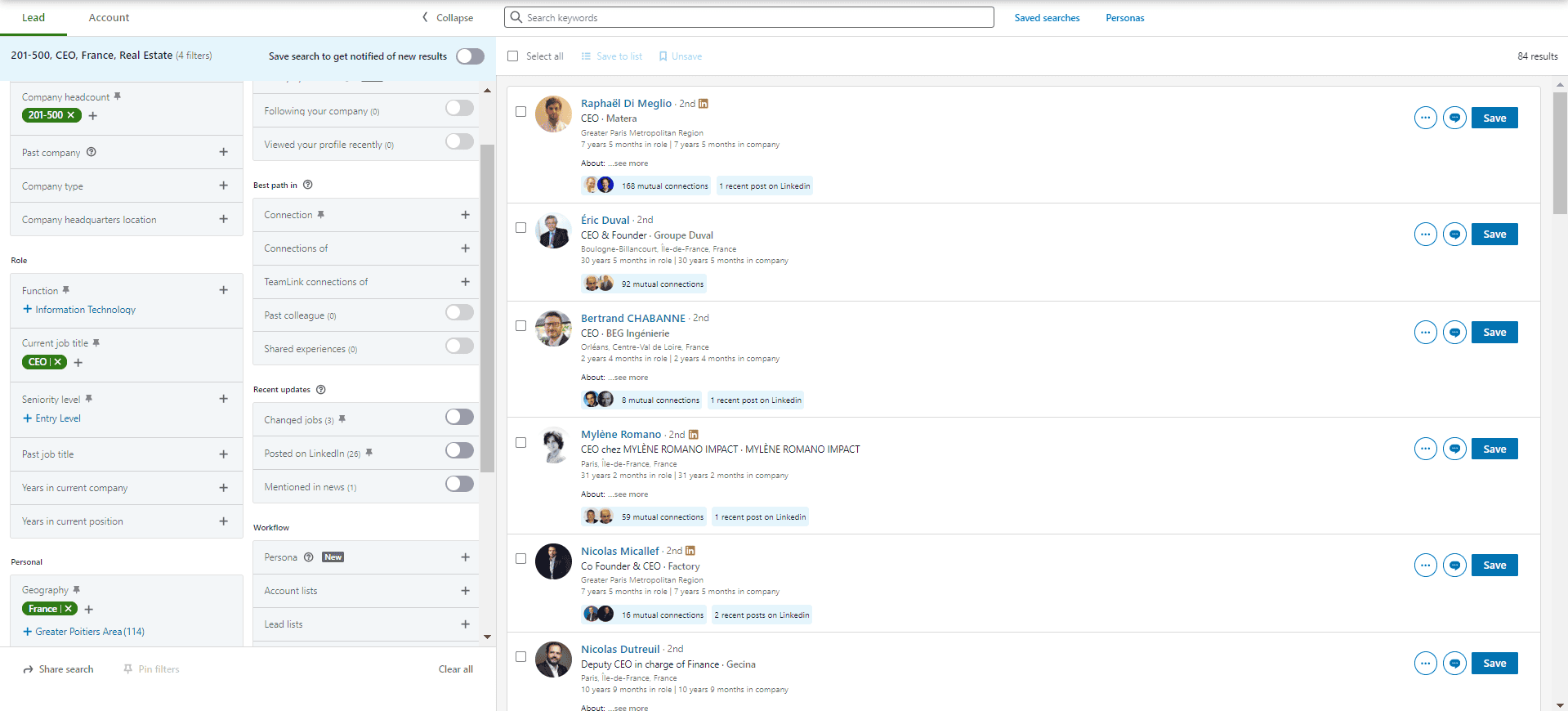
As a general rule, aim for databases of between 200 and 1,000 people; above that, you will probably need to add filters for greater precision. Certain filters, such as experience or seniority level, may only be useful for more precise copywriting in your prospecting campaigns.
Boolean search in Sales Navigator
Boolean search is an advanced search technique that uses logical operators to refine and target search results precisely and efficiently. In Sales Navigator, this method lets you combine different search criteria to find exactly the profiles you are looking for.
When you use quotation marks in Sales Navigator, you can search for an exact expression or a specific phrase. For example, by searching for “Marketing Manager”, Sales Navigator will only display profiles that contain exactly that phrase, eliminating the irrelevant results that might appear if the words were searched for separately.
Logical operators
- AND: – The “AND” operator is used to search for profiles that include all the specified terms. For example, by searching for “Marketing Manager” AND “Growth Hacker”, Sales Navigator will display profiles that contain both “Marketing Manager” and “Growth Hacker” in their titles or descriptions.
- OR: – The “OR” operator is used to search for profiles that include at least one of the specified terms. For example, if you search for “CEO OR Founder”, Sales Navigator will find profiles containing either the term “CEO” or the term “Founder”.
- NOT: – The “NOT” operator is used to exclude specific terms from the search. For example, if you search for “Marketing Manager NOT Senior”, Sales Navigator will display profiles that include “Marketing Manager” but exclude the term “Senior”.
Boolean operators are particularly useful in one Sales Navigator search filter: the “keywords” filter.
When searching by keywords, Sales Navigator analyzes all LinkedIn profile information, including the description, “About” section, work experience, education, recommendations and skills. Using specific, relevant keywords helps you refine your results and obtain more targeted leads. For example, you can search for “Wedding” OR “Mariage” to find profiles containing either term and reach photographers in these fields. Be careful, though: keywords are only useful combined with the “Job title” filter, otherwise you run the risk of many targeting errors in your search.
Sales Navigator’s Boolean search is a powerful tool for refining your searches and obtaining highly precise results. By using quotation marks, logical operators such as AND, OR and NOT, and parentheses, you can structure complex queries that target exactly the profiles you are looking for. This optimizes your prospecting and helps you find more qualified leads.
How to recover data from Sales Navigator
Once your search is created in Sales Navigator, manual data collection can quickly become time-consuming, especially when working with large volumes of data. Fortunately, there are automated tools that can simplify this process. One of the most effective tools for this task is Captain Data.
Captain Data extracts data from multiple online platforms, including LinkedIn, Sales Navigator, websites, online directories and more. Users can configure custom tasks to obtain exactly the information they need.
Automating data collection saves you valuable time, which you can devote to other important tasks. Tools like Captain Data also reduce human error, ensuring more accurate and complete data collection. Other tools include Phantombuster and Evaboot.
With Captain Data, you can process large volumes of data quickly and efficiently, which is particularly useful for large account lists.
Data collection from Sales Navigator can be simplified and optimized through the use of tools such as Captain Data. By automating this process, you can concentrate on analyzing data and implementing effective prospecting strategies, while saving considerable time.
How to optimize Sales Navigator with MirrorProfiles?
With Sales Navigator, you can quickly build effective prospecting files, whether for prospects or candidates. Then comes the outreach itself, and this is where MirrorProfiles comes in. LinkedIn limits what a single account can do each week: connection requests, messages and searches are all capped per account, and no automation tool changes what one account can do.
The answer is to multiply the accounts. With several dedicated accounts, your weekly prospecting volume grows in proportion to the number of accounts, each one staying within its own limits. As a guide, each account can send 100 to 120 connection requests per week and 40 messages per day, so ten accounts represent 1,000 to 1,200 connection requests per week.
MirrorProfiles provides dedicated LinkedIn accounts, manually warmed up over 4 months with more than 500 real connections, ready for automation: you run your own tools and campaigns. By default, these accounts do not come with Sales Navigator, but you can add a subscription if you need one. In practice, one Sales Navigator subscription, on a single account, is enough to build the lists that your other accounts then work through. That said, Sales Navigator does not change each account’s connection request or message limits.
Sales Navigator is a powerful and indispensable tool for professionals who want to prospect on LinkedIn. With its advanced search and filtering features, it lets you identify the right leads, reach key decision-makers and build solid relationships. By drawing on data constantly updated by LinkedIn members, Sales Navigator turns traditional prospecting into a more efficient and relevant process.
Whether you choose one of Sales Navigator’s plans, or pair it with dedicated accounts from MirrorProfiles and data tools such as Captain Data, you can significantly improve your prospecting strategy and increase your sales effectiveness. By structuring your data collection and multiplying your outreach capacity with several accounts, you save valuable time and maximize your chances of success.
In conclusion, Sales Navigator is more than just a prospecting tool; it is a truly strategic resource for developing your professional network and reaching your sales targets. Don’t wait any longer to exploit its full potential and transform your sales approach.